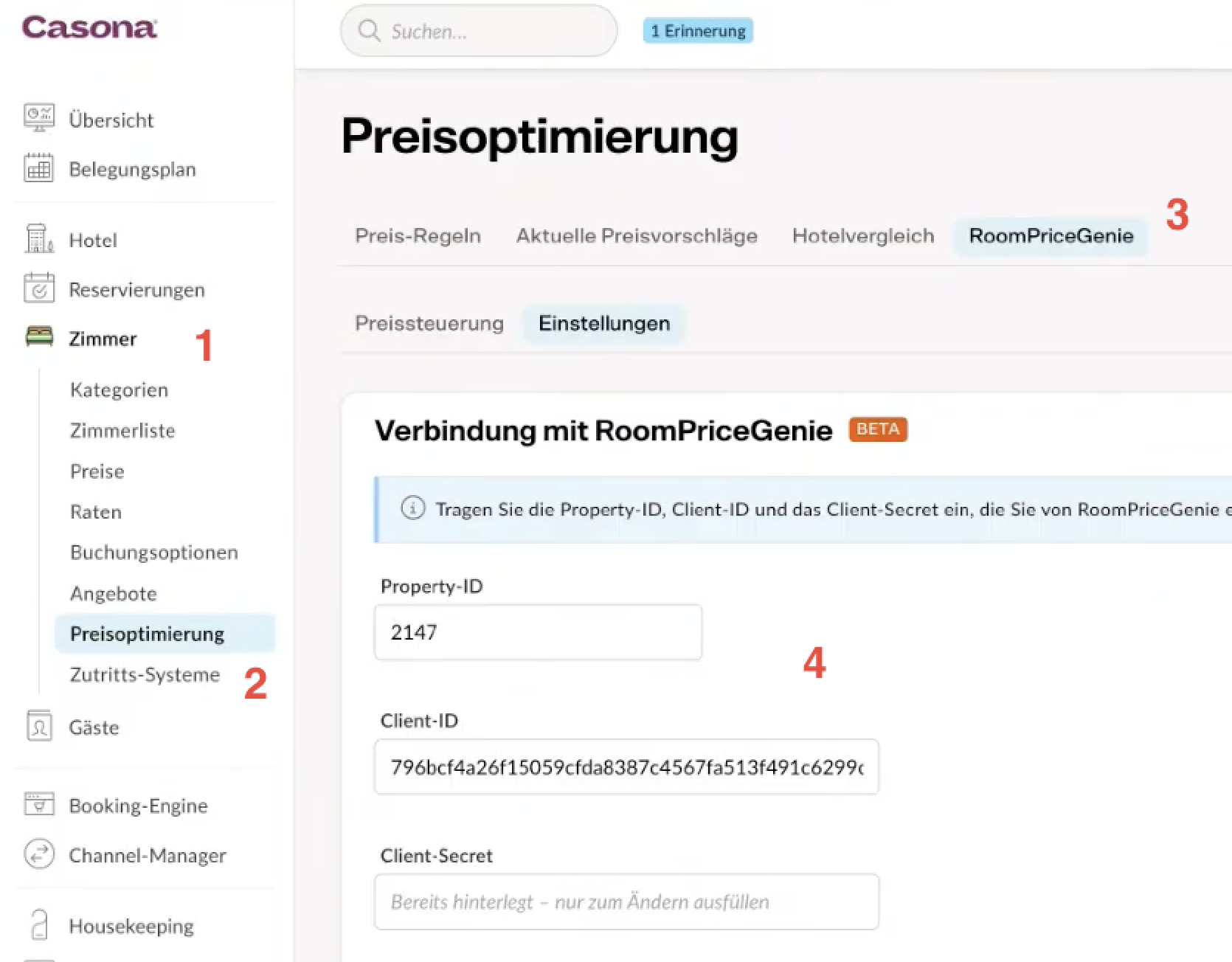
Step 1: Open Price Optimization
In the Casona left-hand menu, click "Rooms" (Zimmer), then select "Price Optimization" (Preisoptimierung) from the submenu.
Step 2: Open the RoomPriceGenie tab
At the top of the Price Optimization page, click the "RoomPriceGenie" tab, then select the "Settings" (Einstellungen) sub-tab. This opens the connection screen.
Step 3: Enter your RoomPriceGenie credentials
Under "Connection to RoomPriceGenie" (Verbindung mit RoomPriceGenie), fill in:
- Property-ID
- Client-ID
- Client-Secret
Once saved, the Client-Secret field will show a placeholder and only needs to be filled in again if you want to change it.
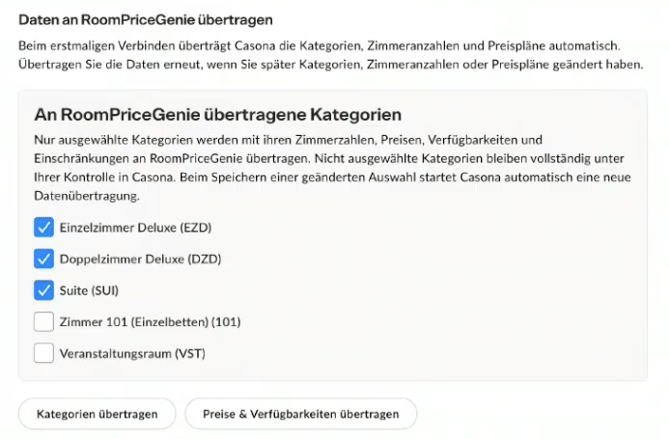
Step 4: Select the room categories to sync
Scroll down to "Transfer Data to RoomPriceGenie" (Daten an RoomPriceGenie übertragen). Check the box next to each room category that should sync its room counts, prices, availability, and restrictions with RoomPriceGenie. Leave a category unchecked if it should stay fully manually controlled in Casona.
Step 5: Transfer the categories
Click "Transfer Categories" (Kategorien übertragen) to send the selected room categories and room counts to RoomPriceGenie. Repeat this step any time categories, room counts, or price plans change.
Step 6: Complete the mapping in RoomPriceGenie
Once you have pushed the room and rates mapping data to RoomPriceGenie, please inform our team so we can complete the mapping setup on our end.
Important: The mapping setup needs to be completed on our side before receiving availability and prices.
Once you have pushed
Step 7: Transfer prices and availability
Click "Transfer Prices & Availability" (Preise & Verfügbarkeiten übertragen) to send current pricing and availability data to RoomPriceGenie, covering the next 18 months.
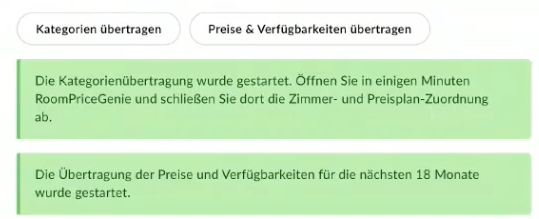
Step 8: Confirm the transfer started
Two green confirmation messages appear:
- Category transfer started — open RoomPriceGenie within the next few minutes to complete the room and price plan mapping
- Price and availability transfer for the next 18 months started
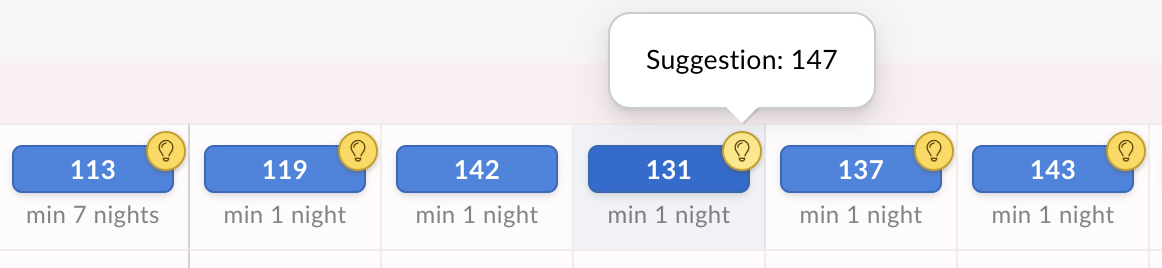
Optional: Using manual price suggestions instead
If you prefer to keep automatic control off, Casona still receives RoomPriceGenie's price suggestions. Each price on the calendar shows a small lightbulb icon — hover over it to see the suggested price, and click it to apply that suggestion with a single click.
Here's an example of how price recommendations would look like in your PMS: