
Adding a new room type is available on all plans: Core, Premium and Professional. However, not all PMS or Channel Manager support a self-service. In this case you need to contact support@roompricegenie.com, and we will add the room type for you.
When you add a room type in your PMS or channel manager, RoomPriceGenie doesn't pick it up automatically. You add the new room type in Rooms Setup, map it to your PMS, and give it a starting price. From then on, RoomPriceGenie prices the new room type along with your other rooms. Nothing changes for your existing room types.
Last updated: Nov 17, 2026
Where to Find Rooms Setup for a New Room Type?
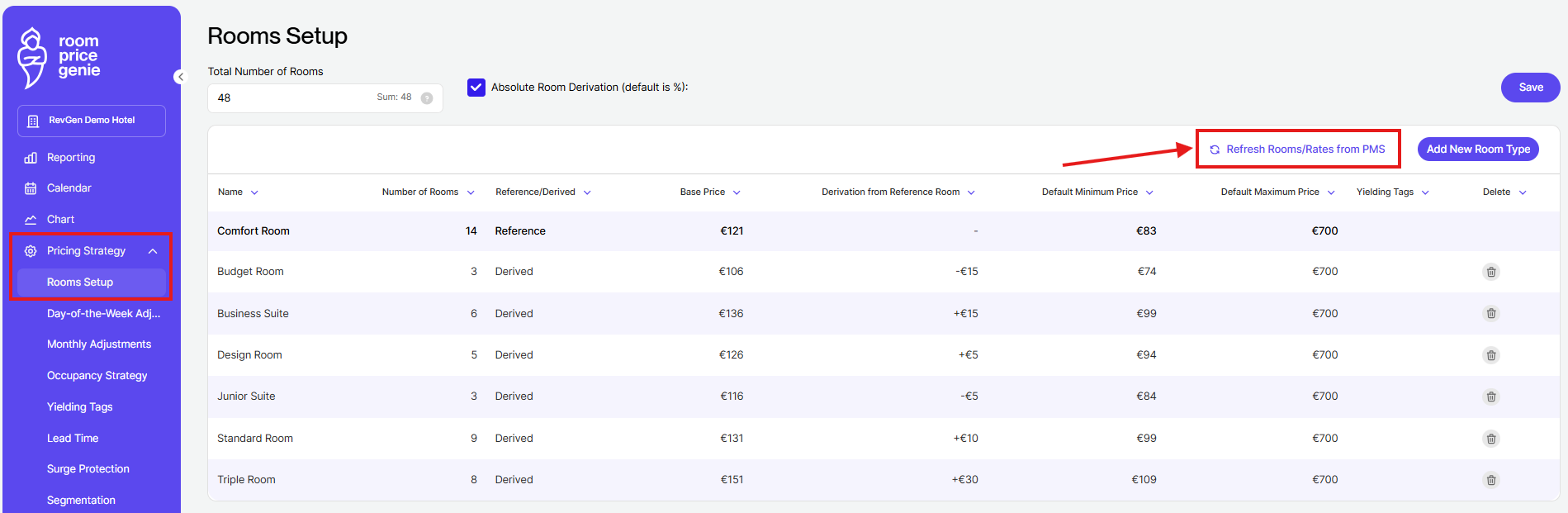
You add a new room type in Pricing Strategy > Rooms Setup. If you manage apartments, the page is called Apartments Setup.
What to Do Before Adding a New Room Type
Create the new room type in your PMS or channel manager first. RoomPriceGenie can only map a room type that already exists there.
In your PMS or channel manager, make sure the new room type has:
- A name and code: the same room type you'll select in RoomPriceGenie.
- The number of rooms: how many rooms or units of this type you sell.
- A main rate plan: the rate plan RoomPriceGenie sends prices to, if your system uses rate plans (see How Does Rate Plan Mapping Work for a New Room Type? below).
- Open availability: rooms open for sale, ideally 12 to 18 months ahead.
It also helps to decide on the new room type's base price, minimum price and maximum price before you start.
How to Add a New Room Type
- Go to Pricing Strategy > Rooms Setup.
- Click Refresh Rooms/Rates from PMS, so RoomPriceGenie loads the new room type from your PMS.
- Click Add New Room Type.
- Enter a name for the new room type.
- Open the PMS Mapping tab and select the new room type from your PMS or Channel Manager.
- Select the main rate plan for the new room type, if your PMS or channel manager uses rate plans.
- Enter the Number of Rooms for the new room type.
- Set the price derivation from your reference room, or a base price, plus a minimum and maximum price. If you derive your other rate plans in RoomPriceGenie, add them on the Derived Rates tab too.
- If your PMS or channel manager supports it, set up occupancy-based pricing for the new room type (see How Does Occupancy-Based Pricing Work for a New Room Type? below).
- Click Save.
- Update Total Number of Rooms at the top of the page, so it equals the sum of all your room types.
- Click Run Pricing, so RoomPriceGenie calculates prices for the new room type.
- Upload your prices manually with Upload all prices.
Running pricing and uploading your prices manually is important: until you do, the new room type's prices aren't visible in your connected PMS or channel manager. Before uploading, click a few dates in your pricing calendar to check that the new prices look right.
A note on the reference room
The reference room is the room type all other room types are priced from. A new room type is usually set up as a percentage or fixed amount above or below the reference room. See Room Derivations for how to choose the right difference.
How Does Rate Plan Mapping Work for a New Room Type?
RoomPriceGenie maps one rate plan per room type: the main rate plan. The optimized price for your new room type goes to that main rate plan.
Your other rate plans, like non-refundable or breakfast included, should follow the main rate plan. Depending on your PMS or channel manager, you set this up in one of two places:
- In your PMS or channel manager: for most systems, you derive your other rate plans from the main rate plan there, using a percentage or fixed amount. RoomPriceGenie updates the main rate plan, and your PMS takes care of the rest.
- In RoomPriceGenie: for some PMS and channel managers, RoomPriceGenie can also send prices to your other rate plans. You add them on the Derived Rates tab of the room type in Rooms Setup, using a percentage or fixed amount.
Please use one place only. If a rate plan is already derived in your PMS, don't add it as a derived rate in RoomPriceGenie too, as this can lead to wrong prices or failed uploads.
Some systems don't use rate plans at all and receive one price per room type. If that's your case, you can skip the rate plan steps.
Not sure which option fits your PMS or channel manager? Just email support@roompricegenie.com and we'll check it for you.
Run pricing and upload after adding a rate plan
After you add a new rate plan, click Run Pricing and then upload your prices manually with Upload all prices. Until you do, the new rate plan's prices aren't visible in your connected PMS or channel manager.
Adding a per-person surcharge to a derived rate, for example for breakfast
When you add a derived rate in RoomPriceGenie, you can also add a per-person surcharge with Additional Per Person Derivation. This is commonly used for breakfast, when breakfast isn't already added in your PMS or channel manager.
For example, your Non-refundable with Breakfast rate is set to 10% below Flexible, plus €15 per guest. If Flexible costs €100, the rate becomes €105 for 1 guest and €120 for 2 guests.
Add breakfast in one place only: either in your PMS or channel manager, or in RoomPriceGenie, so guests aren't charged twice.
Rate plan derivation example
Your new Family Room has three rate plans:
- Flexible (main rate plan): mapped in RoomPriceGenie. RoomPriceGenie sends the price, for example €150.
- Non-refundable: derived as 10% below Flexible, so it becomes €135.
- Breakfast included: derived as €20 above Flexible, so it becomes €170.
When RoomPriceGenie changes the Flexible price, the Non-refundable and Breakfast included prices follow automatically. This works the same way whether the derivation is set up in your PMS or in RoomPriceGenie.
Why rate plans that aren't derived don't update
A rate plan that isn't mapped, and isn't derived from the main rate plan in your PMS or in RoomPriceGenie, doesn't receive RoomPriceGenie prices. Its price stays at whatever was last set in your PMS or channel manager, and can drift away from your optimized prices.
How Does Occupancy-Based Pricing Work for a New Room Type?
With occupancy-based pricing, your new room type gets a different price depending on the number of guests. Occupancy-based pricing is available if your connected PMS or channel manager supports it.
To set up occupancy-based pricing, open the room type in Rooms Setup and set its default occupancy. Then add a discount per guest for fewer guests, a surcharge per guest for more guests, or both.
Occupancy-based pricing example
Your new Family Room has a default occupancy of 2 guests, and RoomPriceGenie recommends €120 for a night. You add a surcharge of €20 for the 3rd guest and €40 for the 4th guest. The room then costs €140 for 3 guests and €160 for 4 guests.
A note on where occupancy-based pricing is set up
If you don't see the occupancy settings for your room type in RoomPriceGenie, your PMS or channel manager handles occupancy-based pricing itself, so you set it up there. Not sure? Email support@roompricegenie.com and we'll check it for you.
Tips for Adding a New Room Type
- Pick your most-booked rate plan as the main rate plan: usually your flexible or best available rate. Your other rate plans then follow it.
- Check your new prices: after saving, click a few dates in your pricing calendar to see the new room type's prices before they're uploaded.
- Keep room counts in line with your PMS: the number of rooms per room type in RoomPriceGenie should match your PMS or channel manager, so your occupancy is calculated correctly.
Things to Know About Adding a New Room Type
- RoomPriceGenie maps one rate plan per room type, the main rate plan. Your other rate plans follow it through a derivation, set up either in your PMS or channel manager, or on the Derived Rates tab in RoomPriceGenie where your system supports it. Never set up the same derivation in both places.
- After adding a new room type or rate plan, run pricing and upload your prices manually. Until you do, the new prices aren't visible in your connected PMS or channel manager.
- RoomPriceGenie doesn't add new room types automatically. You add each new room type in Rooms Setup, or ask our support team to do it for you.
- Occupancy for the new room type is only correct once its rooms are open for sale in your PMS or channel manager.
- Customers can't change the reference room themselves. To request a reference room change, email support@roompricegenie.com.
- Your subscription fee is based on your total number of rooms, not on how many room types you have. If adding a room type raises your total number of rooms, our Subscriptions & Billing team contacts you about any fee change before anything is charged.
New Room Types FAQ
Can I Map More Than One Rate Plan to a New Room Type?
You map one main rate plan per room type. Your other rate plans then follow the main rate plan. For most PMS and channel managers, you set this up in your PMS. For some, you can also add your other rate plans on the Derived Rates tab in Rooms Setup, and RoomPriceGenie sends their prices too. Not sure which applies to you? Email support@roompricegenie.com and we'll gladly help.
Does RoomPriceGenie Add a New Room Type Automatically?
No. After you create the room type in your PMS or channel manager, click Refresh Rooms/Rates from PMS in Rooms Setup and add the new room type there.
Can Support Add a New Room Type for Me?
Yes. Email support@roompricegenie.com with, for each new room type: its name in your PMS, the number of rooms, the main rate plan, any other rate plans and how they should differ from the main rate plan, and the base, minimum and maximum price. Also tell us your new total number of rooms, and any old room types to remove.
Does Adding a New Room Type Change My Subscription Fee?
Adding a room type only changes your subscription fee if your total number of rooms goes up. Our Subscriptions & Billing team contacts you about any fee change first.
Why Don't I See the Prices of My New Rate Plan in My PMS?
After adding a new room type or rate plan, click Run Pricing and upload your prices manually with Upload all prices. The new prices only show up in your connected PMS or channel manager after this upload. Still not seeing them? Email support@roompricegenie.com and we'll take a look.
Can I Set Different Prices for Different Numbers of Guests?
Yes, if your PMS or channel manager supports occupancy-based pricing. Open the room type in Rooms Setup, set its default occupancy and add a discount or surcharge per guest. If you don't see these settings, set occupancy-based pricing up in your PMS or channel manager instead.
Need Help?
Questions? Email support@roompricegenie.com, or ask for a person in the in-app chat. For billing, email subscriptions@roompricegenie.com.