What does it mean?
Occupancy-based pricing (or Person-based pricing) simply means setting different rates for different occupancies of your room. Take a look here for more detailed explanations.
For example, let’s take a triple room in which you can accommodate 3 guests.
Occupancy-based rate:
Is when you have different pricing for different occupancy. So if in your Triple room, three guests are staying the price will be $120, but if two guests are staying the price will be $100 and if only 1 guest is staying the price is $80.
Person-based rates can be also used in cases when you are adding an extra bed and therefore you can allow yourself to charge extra. Meaning you have a rate of $120 but you charge an extra $20 for the additional bed.
Can you do this with RoomPriceGenie?
The setup in RoomPriceGenie depends on the setup you have in your PMS/Channel Manager. Some PMS and Channel Manager systems allow you to set the offsets for different occupancies within their framework. Some require us to send them the different prices.
- Protel
- HotelSpider
- VerticalBooking
- Semper
- Kognitiv
For the rest, you will not be given the option in RoomPriceGenie and will need to set it in your PMS or Channel Manager.
Where and how can you set it?
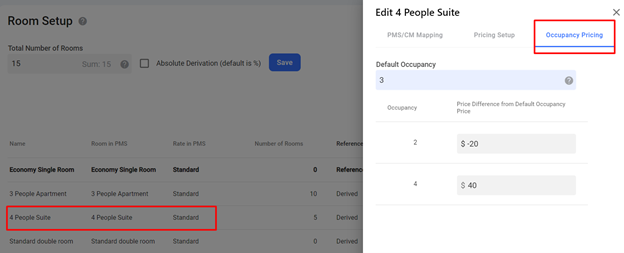
If your system requires us to set the offsets for different occupancies, you will see it here.
The important consideration is what the ‘Default Occupancy’ for your room is. Then you can add a surcharge for extra guests, offer a discount for fewer guests, or do both at the same time.
-
Option 1: When default = maximum occupancy
In the case that your default occupancy is the maximum occupancy of the room type – you can set a discount per person.
For Example, let’s say that the price for your 4 person suite, our price recommendation for the room is $120. By adding the discounts as shown in the screenshot below, the price for 2 guests staying in the room will be $80 (-$40), and the price for 3 guests staying will be $100 (-$20).

- Option 2: Adding surcharges to default occupancy
If you can add extra beds to your default occupancy – you can add a surcharge.
For example, let’s say that you choose the default occupancy for this room type to be 2 guests. The price we recommend for these 2 guests on a given night is $120. By adding the surcharge you can define how much extra you would like to charge for the extra guests that can fit in this room type. By following the example above, the price for 3 guests will be $140 (+$20) and the price for the 4 guests will be $160 (+$40).
Please note: the surcharge is compared to the default occupancy. E.g. if you charge an extra $20 for every additional guest, then under the third guest, you should add $20, for the fourth guest you should add $40, under the fifth guest $60, and so on.

-
Option 3: default = standard occupancy
You can have both fewer and more guests than your default occupancy – adding discounts and surcharges together. Here you do a combination of Option 1 and Option 2.
For Example, let’s say that in your PMS setup, your default occupancy for this room type is 3 guests. The price you charge for these 3 guests on a given date is $120. By adding a surcharge you can define how much extra you would like to charge for the 4th guest but at the same time, you can give a discount for fewer guests staying in that room. By following the example above, the price for 2 guests staying in the room will be $100 (-$20) and the price for 4 guests staying will be $160 (+$40).