
The Show dropdown is available on all plans. Some adjustment views in the Show dropdown depend on your plan or on your PMS or channel manager.
The Show dropdown in your pricing calendar lets you switch from your prices to one type of manual adjustment at a time. This way you can check which dates have a percent adjustment, a fixed price or another change, without opening every date. Nothing about your prices changes when you switch views.
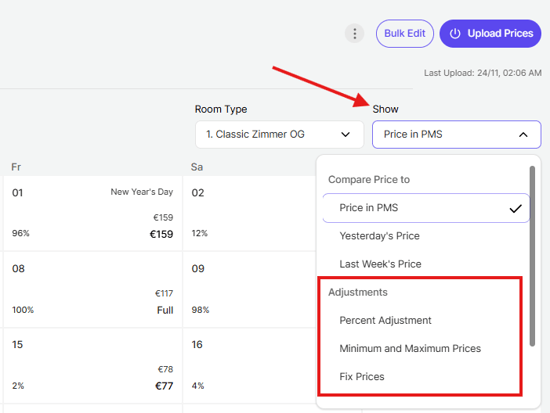
Where to Find the Adjustment Views?
The adjustment views are in the Show dropdown at the top right of your pricing calendar. By default, Show is set to Price in PMS.
How to view your adjustments in the pricing calendar
- Go to Calendar.
- Click the Show dropdown at the top right.
- Under Adjustments, select the adjustment type you want to see, for example Minimum and Maximum Prices.
- Select a room type in the Room Type dropdown next to Show. For apartment properties, the dropdown is called Apartment Type.
- To go back to your prices, select Price in PMS in the Show dropdown.
The pricing calendar shows adjustments for one room type at a time. To check another room type, change the Room Type dropdown.
A note on the details for one date
To see every adjustment that affects the price on one date, click that date in the pricing calendar. The price breakdown shows your adjustments together with the other factors behind the price. For more, see Price Explanations.
What Do the Adjustment Views Show?
Each adjustment view shows the manual adjustments of that type for the selected room type. For example, when you select Percent Adjustment, you see the percent adjustments you set for each date. Your prices stay visible in every view.
Depending on your plan and your PMS or channel manager, the Show dropdown can include these adjustment views:
- Percent Adjustment: the percent adjustments you set for specific dates.
- Minimum and Maximum Prices: the minimum and maximum prices that apply on each date.
- Fix Prices: the dates with a fixed price.
- Closed Rooms: the rooms you closed in RoomPriceGenie on each date.
- Occupancy Pricing: the occupancy pricing that applies on each date.
- Aggressiveness: the aggressiveness that applies on each date.
- Median Booking Window: the median booking window that applies on each date.
Fixed prices in every adjustment view
Fixed prices are always marked with a padlock next to the price, whichever view you select in the Show dropdown. A fixed price replaces RoomPriceGenie's price recommendation for that date.
To change or remove an adjustment, use Bulk Edit or click the date. See Bulk Edit, Percent Adjustments, Individual Minimum and Maximum Prices, Fix Prices and Closed Rooms.
Why Don't I See Every Adjustment View?
The Show dropdown is available on all plans, but some adjustment views depend on your plan or on the PMS (property management system) or channel manager connected to RoomPriceGenie. If you don't see an adjustment view, it isn't available for your plan or your PMS or channel manager. To find out more, email support@roompricegenie.com.
Occupancy Pricing in the Show dropdown
Occupancy Pricing appears only when your PMS or channel manager supports occupancy-based pricing, which means different prices for different numbers of guests. If Occupancy Pricing isn't in your Show dropdown, your PMS or channel manager doesn't support occupancy-based pricing.
Closed Rooms in the Show dropdown
If Closed Rooms Detection is active for your account, RoomPriceGenie reads your closed rooms directly from your PMS. You only close rooms in your PMS, and you don't need to close them manually in RoomPriceGenie. In that case, the Closed Rooms view isn't shown in the Show dropdown. To see which rooms RoomPriceGenie reads as closed on a date, click that date in the pricing calendar and check the Closed Rooms section.
Closed rooms are rooms that are out of order, out of service or in house use. A stop-sell or close-out in your PMS or channel manager is not a closed room. For more, see Closed Rooms.
Tips for Using the Adjustment Views
- Check before you change a price: if a price looks too high or too low, open the adjustment views first. A forgotten fixed price or a minimum price often explains it.
- Check every room type: the adjustment views show one room type at a time, so switch the Room Type dropdown to check the others.
- Go back to your prices: select Price in PMS in the Show dropdown to return to the normal pricing calendar.
Things to Know About the Adjustment Views
- Switching views in the Show dropdown doesn't change or upload any prices.
- The adjustment views show one room type at a time.
- To see who made a change and when, use the Activity Log. The Activity Log is available on the Premium and Professional plans, not on Core.
Adjustment Views FAQ
Where do I find the minimum and maximum prices I already set?
In the pricing calendar, select Minimum and Maximum Prices in the Show dropdown at the top right. Then select the room type in the Room Type dropdown. Your default minimum and maximum prices are in Pricing Strategy > Rooms Setup.
Where do I see my fixed prices?
Fixed prices are marked with a padlock next to the price in every view of the pricing calendar. To see only your fixed prices, select Fix Prices in the Show dropdown at the top right, then select the room type.
Why is Closed Rooms missing from the Show dropdown?
The Closed Rooms view isn't shown when Closed Rooms Detection is active for your account. RoomPriceGenie then reads closed rooms directly from your PMS, so you don't close rooms manually in RoomPriceGenie.
Why is Occupancy Pricing missing from the Show dropdown?
The Occupancy Pricing view appears only when your PMS or channel manager supports occupancy-based pricing. If Occupancy Pricing is missing, your PMS or channel manager doesn't support occupancy-based pricing.
Need Help?
Questions? Email support@roompricegenie.com, or ask for a person in the in-app chat. For billing, email subscriptions@roompricegenie.com.
Last updated: November 2026