
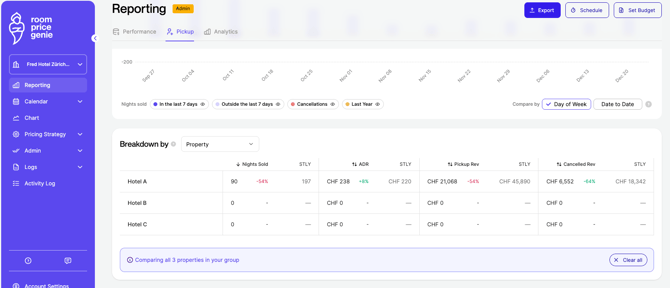
The breakdown table on the Pickup Dashboard can now be grouped by Property, as well as by Room type. When you select more than one property, the table shows pickup for each property separately, so you can quickly see which properties are driving your results and which are holding them back.
No additional setup is needed. The breakdown uses the properties you've already selected.
Why use the Property breakdown?
- See what totals can hide. A portfolio total can hide big differences between properties. One strong performer can mask several weaker ones, and you might only notice when you check each property on its own.
- Compare properties in one view. Before, the only way to compare properties was to switch between them one by one in the property selector and note down the figures.
- Like-for-like comparisons. Each property row uses the same KPIs as the rest of the dashboard, so every property is measured in the same way.
How to find the Property breakdown
- In Reporting, open the Pickup tab.
- In the property selector, choose the properties you want to compare.
- Scroll to the breakdown table at the bottom of the dashboard. Use its selector to group the table by Room type or Property.
This feature is available for accounts with more than one property. No setup is needed.
How to use the Property breakdown
You can view the breakdown by property in two ways:
Option 1: Select more than one property
Use the property selector to choose the properties you want to compare. As soon as you select more than one, the breakdown table switches to Property automatically. Room type isn't available when several properties are selected, because each property has its own room types.
Option 2: Choose Property in the breakdown selector
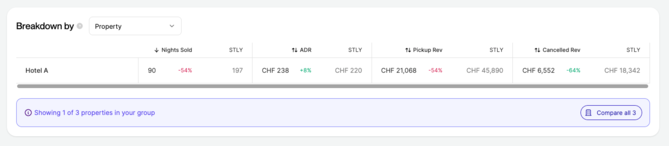
You can also select Property in the breakdown selector at any time. If only one property is selected, a banner will ask you to add more, since you need at least two properties to make a comparison.
Tips and best practices
- Sort by Cancelled Revenue. This helps you find properties where cancellations are cutting into otherwise healthy pickup, a pattern that is easy to miss in a portfolio total.
- Look into properties that stand out. If a property's pickup looks unusually low or flat, select that property on its own. The table switches back to Room type, so you can see whether a specific room type is causing it.
FAQs
Why does the breakdown table change when I select a second property?
Room types differ from one property to another, so they can't be compared accurately across properties. The table switches to Property so that every row is compared like-for-like.
Why is the table empty when I select Property?
You probably have only one property selected. Add at least one more in the property selector and the comparison will appear.
Where has the Room type breakdown gone?
It's hidden whenever more than one property is selected. Select a single property to see it again.
Can I use filters while breaking down by property?
Not at the moment. Filters are hidden while more than one property is selected. To narrow down the comparison, adjust your selection in the property selector instead.
Will I see properties I don't manage?
No. The table only shows properties that your user account has access to.
Can I export the property breakdown?
Not yet. Exporting breakdown data is planned for a future update.