
Minimum stay restrictions are a vital tool for hoteliers and revenue managers to optimise occupancy, increase revenue, and attract the right guest segments. RoomPriceGenie supports fully automated setting and removal of Min Stay rules, so you can stop chasing restrictions in your PMS and let the system manage them for you.
Plan availability| Capability | Core | Premium | Professional |
|---|---|---|---|
| Min Stay Calendar (view & manual edits) | ✓ | ✓ | ✓ |
| Orphan Gap Correction | ✓ | ✓ | ✓ |
| Automated Set & Remove rules | ✓ | ✓ | |
| Restrictions on Rates (PMS-dependent) | ✓ | ✓ | ✓ |
| Stay-through vs Arrival mode (PMS-dependent) | ✓ | ✓ | ✓ |
PMS compatibility: This feature is available with a growing number of PMS integrations. For the full, up-to-date list, including integrations currently in pilot, visit our Integrations page.
Note for Mews users: Min Stay restrictions in Mews override anything sent from RoomPriceGenie. To get the full benefit of automation, clear your restrictions in Mews and manage them exclusively in RoomPriceGenie.
What is a Minimum Stay restriction?
A Minimum Stay (Min Stay or MLOS) restriction limits bookings to a defined number of consecutive nights.
Example: If a 3-night Min Stay is set on Friday, any booking that includes Friday must be at least 3 nights long.
Why use it?
- Protect high-demand nights by filtering out short stays
- Reduce orphan gaps (short, unbookable windows between reservations)
- Capture more revenue by lifting restrictions automatically when demand softens
- Avoid lost bookings caused by forgotten or overly strict rules
How Min Stay works in RoomPriceGenie
RoomPriceGenie reads your existing Min Stay restrictions from your PMS, displays them in the calendar, and lets you layer automated rules on top.
The product has five building blocks:
- Automated rules: apply and remove restrictions based on lead time and occupancy.
- Orphan Gap Correction: automatically shortens restrictions to make unbookable nights bookable.
- Fixed restrictions: manual, date-specific values that override automated rules.
- The Min Stay Calendar: a single view of every active restriction by date, room type, and source.
- Restrictions on Rates: extends Min Stay beyond the primary mapped rate (where the PMS allows it).
Understanding automated rule types
There are three types of automated rules in RoomPriceGenie.
1. Set & Remove rule
A rule that puts a restriction on when its conditions are met and takes it off again when one or more removal conditions are met. This is the most common pattern.
2. Set-only rule
A rule that puts a restriction on but never removes it automatically. The restriction stays on for the entire effective period, or until you archive the rule.
3. Universal Removal rule
A rule that contains only removal conditions: no Set logic and no minimum number of nights. It acts as a global safety net. When its conditions are met, it removes any active restriction on that date, including restrictions set by other automated rules and restrictions coming from your PMS.
Good to know: Universal Removal rules are the cleanest way to say - "No matter where the restriction came from, lift it when we're close to arrival and the conditions are met."
How rules interact
You can have several rules active on the same date at the same time; they don't have to be mutually exclusive. RoomPriceGenie evaluates them all and applies the most specific match.
Prioritisation
When multiple rules apply, the most specific matching rule wins. Specificity is judged in this order:
- Effective period: Custom dates beats specific days of the week, which beats Always.
- Days before arrival: Less than X beats More than X, which beats Any.
- Occupancy: Above X% or Below X% beats Any.
- Tie-breaker: if two rules are equally specific, the one with the longest minimum stay wins.
If the winning rule is later removed (for example, because a removal condition is met), the system falls back to the next most specific rule that is still active.
Reversibility
Both activation and removal are reversible:
- If occupancy drops below a Set rule's threshold, the restriction lifts.
- If occupancy then climbs back up, the restriction reactivates.
- The same applies to removal conditions and Universal Removal rules: they switch on and off with the conditions that drive them.
This continues until the day of arrival.
Fixed restrictions
If you manually set a date to Always X nights or No min stay in the calendar, this becomes a Fixed restriction (shown as "Fixed" in the Min Stay Calendar). Fixed restrictions always win over automated rules and PMS restrictions.
The only exception is Orphan Gap Correction: if you enable the option to override fixed restrictions, it can reduce a Fixed value to fill a gap. The original Fixed value is restored automatically once the gap closes.
Where PMS restrictions sit
Restrictions sent to RoomPriceGenie by your PMS are treated as Set-only rules with no removal logic. RoomPriceGenie rules sit above PMS restrictions, so a RoomPriceGenie rule (including a Universal Removal rule) can override a PMS-sourced restriction. Fixed restrictions sit above everything.
Except for Mews — if your PMS is Mews, we recommend you clear all rules in Mews.
Creating a rule
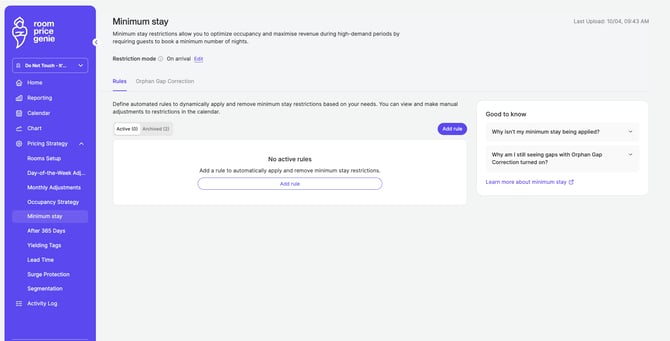
Go to Pricing Strategy → Minimum stay → Add rule. The rule builder is a four-step wizard.
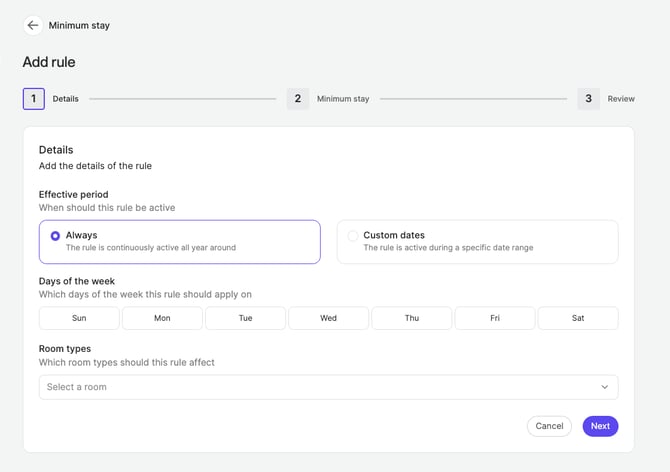
Step 1 — Details
Define when and where the rule applies:
- Effective period: Always (year-round) or Custom dates (a specific range).
- Days of the week: which weekdays the rule applies to.
- Room types: which room types the rule affects.
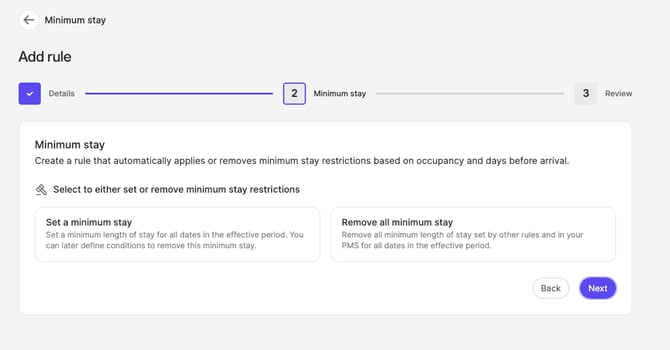
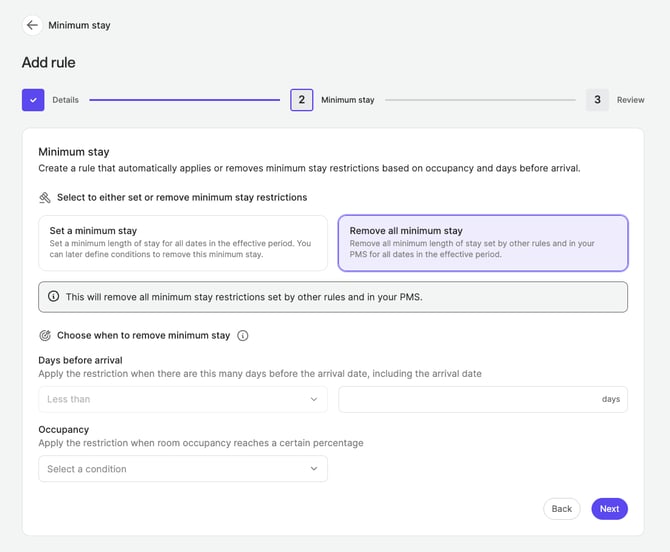
Step 2 — Minimum stay
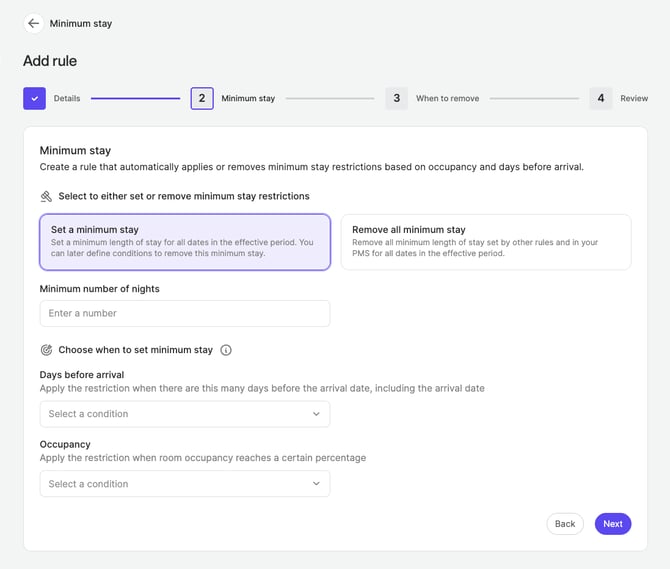
Choose whether this rule sets or removes a restriction.
If you choose Set:
- Pick the minimum number of nights.
- Define the activation conditions:
- Days before arrival: Any, More than X, or Less than X.
- Occupancy: Any or Above X%.
All activation conditions must be met at the same time for the restriction to apply.
Note: Occupancy is evaluated at room type level, not property level. A rule may apply to a specific room type even if overall hotel occupancy is above or below the threshold.
If you choose Remove:
- Define the conditions under which restrictions are lifted on the affected dates:
- Days before arrival: Less than X.
- Occupancy: Any or Below X%.
- A rule that contains only Remove conditions (no Set) becomes a Universal Removal rule and lifts restrictions from any source, including your PMS.
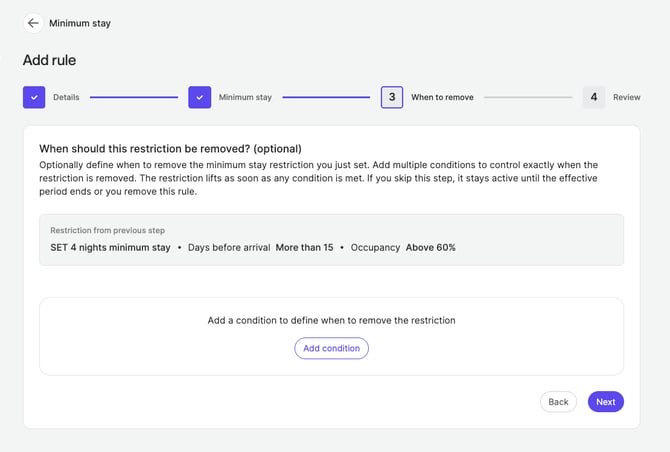
Step 3 — When to remove (optional)
If you set a restriction in Step 2, you can optionally define when it should be lifted.
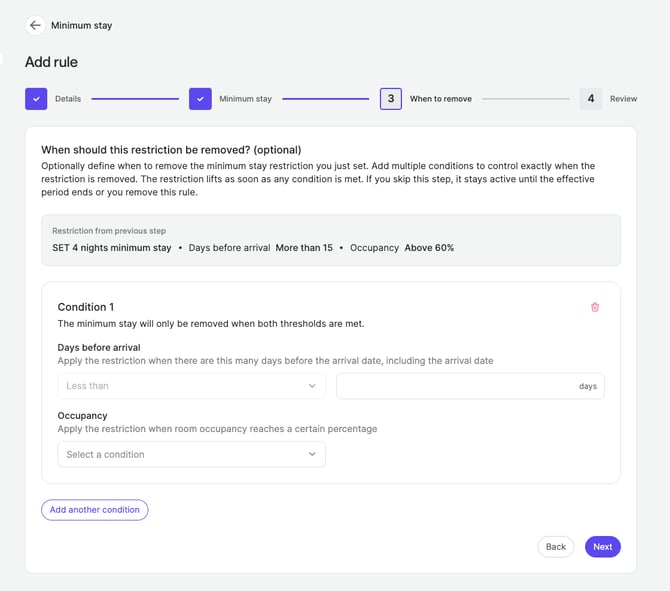
- Add one or more removal conditions.
- Each condition can combine Days before arrival and Occupancy.
- The restriction lifts as soon as any one of the conditions is met (OR logic).
If you skip this step, the restriction stays on for the entire effective period.
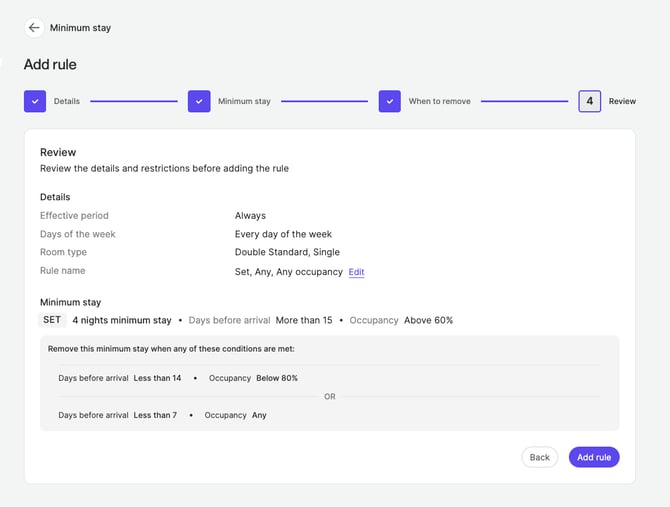
Step 4 — Review
Review the rule summary and confirm. If the new rule conflicts with an existing one, RoomPriceGenie will let you know:
- Duplicate rule: creation is blocked.
- Conflicting rule: you'll see a warning, but you can still create the rule.
A real-world example
Most properties don't need a complex setup. The most common pattern, used by around 60% of properties with Min Stay rules in RoomPriceGenie, is a single rule with a gradual removal:
"Protect weekends, then gradually remove as arrival approaches."
| Step | Configuration |
|---|---|
| Set | 2 nights, Fri & Sat, Any lead time, Any occupancy |
| Remove condition 1 | Less than 21 days before arrival, occupancy below 60% |
| Remove condition 2 | Less than 14 days before arrival, Any occupancy |
What this does:
- Every Friday and Saturday gets a 2-night minimum.
- More than 21 days before arrival, the restriction holds regardless of bookings.
- Between 14 and 21 days before arrival, the restriction lifts if occupancy is still below 60%.
- Within 14 days of arrival, the restriction lifts unconditionally, because selling a 1-night stay is better than selling nothing.
Managing existing rules
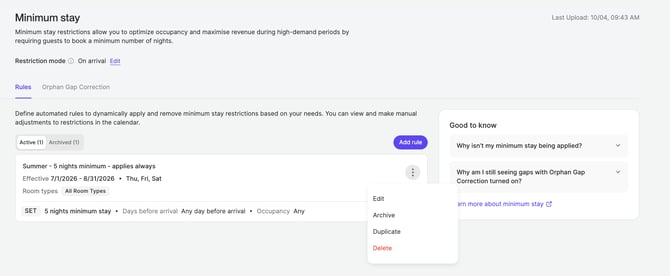
The Rules page shows all your rules, grouped into Active and Archived tabs. Each rule card shows the effective period, days of the week, affected room types, and a Set/Remove summary.
For each rule, you can:
- Edit: opens the same four-step wizard.
- Duplicate: useful for creating variations.
- Archive / Unarchive: pauses a rule without deleting it.
- Delete: removes the rule permanently.
At the top of the page, the last sync timestamp shows you when changes were last sent to your PMS.
Orphan Gap Correction
The scenario:
- All rooms of a type are fully booked on Thursday and Sunday night.
- You have a 3-night minimum on Friday and Saturday.
The problem: No one can book a 3-night stay that includes Friday or Saturday, because they can't arrive on Thursday or stay through Sunday. The rooms are empty but unbookable.
The fix: Orphan Gap Correction detects these stranded windows and automatically reduces the restriction so the gap can be sold.
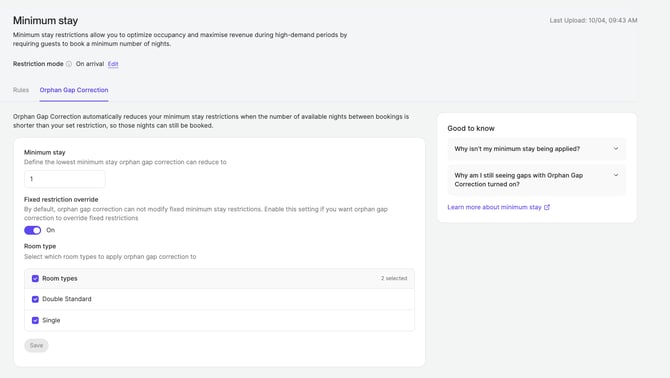
How to enable
- Go to Pricing Strategy → Minimum stay → Orphan gap correction.
- Choose whether Orphan Gap Correction should also override fixed (manual) restrictions.
- Select the room types you want it enabled for.
How it behaves over time
On every evaluation, Orphan Gap Correction looks at the current calendar state:
- If the gap still exists, the reduced value stays.
- If the gap disappears (for example, after a cancellation), the original rule value is restored.
The Min Stay Calendar
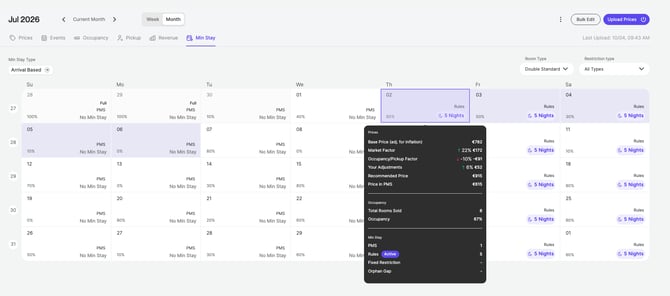
The calendar gives you a single view of every active restriction.
Per-date display
For each date you'll see:
- The minimum stay value (e.g. "3 nights"), or an empty state if none applies.
- The source of the restriction:
- Rule — set by a RoomPriceGenie rule
- Orphan Gap — adjusted by Orphan Gap Correction
- PMS — pulled in from your PMS
- Fixed — set manually on this specific day
Hover or click a date for a tooltip showing the value, the source, and which rule produced it.
Filters
Filter the calendar by:
- Room type
- Restriction type (Rules, Orphan Gap, PMS, Fixed)
Bulk edits
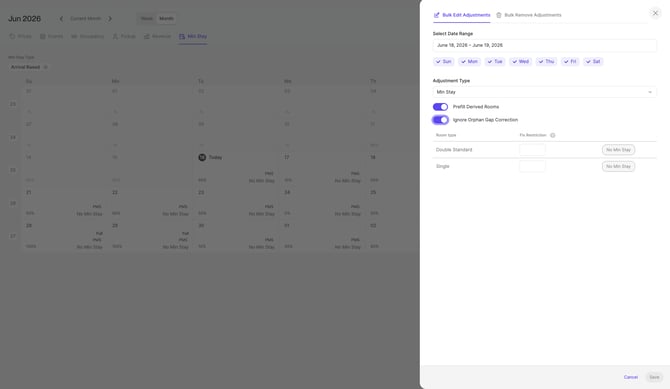
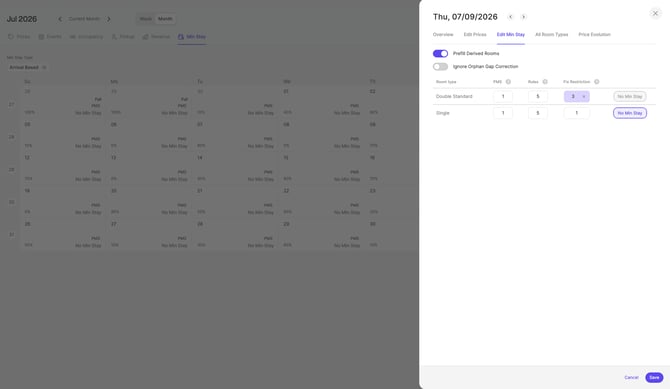
Go to Calendar → Bulk Edit → Adjustments dropdown → Min Stay. Select a date range and days of the week, then set a fixed value or No min stay. This is useful for events, seasonal periods, or undoing a configuration mistake.
Good to know: You can turn off Orphan Gap Correction for specific dates, either individually or via bulk edit. This disables all automatic adjustments for those dates; it's all or nothing per date.
Day-level edits
Click a date to edit its Min Stay directly. You can choose No min stay, a specific number of nights (Always X nights), or revert to the rule-driven value. Choosing No min stay or Always X nights creates a Fixed restriction, which bypasses the rule engine.
Restrictions on Rates
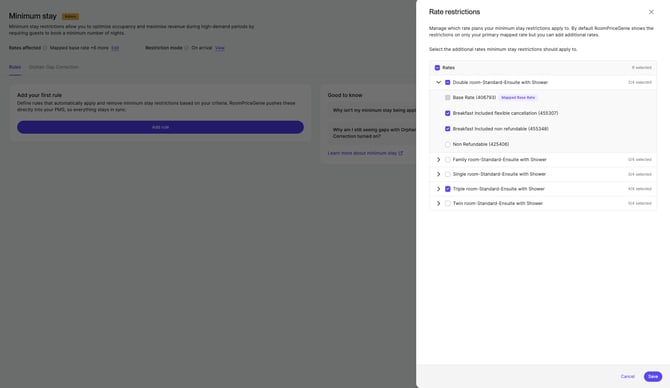
Available on all plans for selected PMS integrations: Avirato, Cloudbeds, Apaleo, Eviivo, Guestpoint, and Zonal (HLS).
By default, Min Stay restrictions are applied only to your primary mapped rate. With Restrictions on Rates, you can extend them to additional rate plans.
Good to know — PMS-specific behaviour: Some PMSs apply restrictions at rate plan level (e.g. Ibelsa), while others apply them at room type level (e.g. Beds24). Where the PMS doesn't support per-rate restrictions, RoomPriceGenie falls back to the level the integration supports.
Stay-through vs Arrival mode
Available on all plans for selected PMS integrations: Eviivo, RMS Cloud, and Booking Factory. For other PMSs, the mode is determined by the integration and shown in the Calendar.
The mode controls how a restriction applies to a date:
- Stay-through mode: the restriction applies to any booking that includes that night, regardless of the arrival date.
- Arrival mode: the restriction applies only to bookings that start on that date.
Example — a 2-night minimum on 17 July:
| Mode | Effect |
|---|---|
| Stay-through | Any booking that includes the night of 17/07 must be at least 2 nights long. For example, a guest arriving on 16/07 must stay until at least 18/07, and a guest arriving on 17/07 must stay until at least 19/07. |
| Arrival | Only guests arriving on 17/07 are affected; they must stay until at least 19/07. Bookings that start on other dates are not restricted by this date. |
Good to know
- A Min Stay value of 1 night means "no restriction". RoomPriceGenie removes the restriction from your PMS.
- RoomPriceGenie only sends changes to your PMS. Restrictions that already match what's in your PMS are not re-sent.
- For Mews properties, manage Min Stay exclusively in RoomPriceGenie, as Mews restrictions take precedence over anything sent from RoomPriceGenie.
Common questions
Why isn't my minimum stay being applied?
Check the following, in this order: Is the rule active? Do the effective period and days of the week cover the date? Are the activation conditions (lead time and occupancy) met? Is a more specific rule taking priority? Also remember that Fixed restrictions bypass rules entirely.
Why am I still seeing gaps with Orphan Gap Correction turned on?
Orphan Gap Correction only reduces a restriction when doing so makes a stranded gap bookable. If reducing the restriction still wouldn't make the gap bookable, if the room type isn't enabled, or if Orphan Gap Correction is turned off for that date, the gap stays.
Will a restriction come back after it's removed?
Yes. Both activation and removal are reversible. If a removal condition is no longer met (for example, occupancy climbs back up), the restriction reactivates, as long as the original Set conditions are still met.
What happens to restrictions after a cancellation?
The system re-evaluates everything on every run, using the current calendar. Restrictions, removals, and Orphan Gap Correction all adjust to the new state.
Minimum Stay Restrictions are available on all three plans (Core, Premium, and Professional), with one difference in scope. Every plan includes the Min Stay Calendar, where you can view and manually edit minimum stay settings, as well as Orphan Gap Correction. Restrictions on Rates and the choice between Stay-through and Arrival mode are also available on all plans, although both depend on whether your PMS supports them. Automated Set & Remove rules are the only capability not included in Core; they are available on the Premium and Professional plans.