Your Pickup Dashboard now has two new tools: a breakdown table and a filter panel.
Instead of just seeing your total pickup, you can now:
- Break it down — see pickup by category, so you can spot which segments are performing well and which aren't.
- Filter the dashboard — narrow everything down to a specific selection.
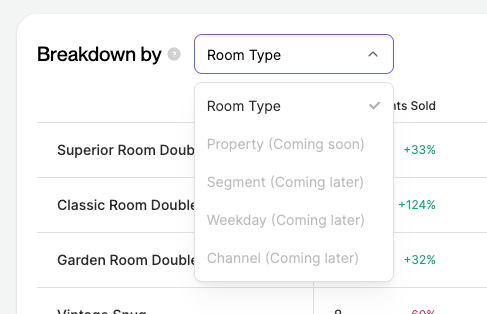
Right now, Room Type is the first category available, with more on the way.
Why use Pickup Breakdown & Filters
- Aggregate pickup can hide what's really going on — a healthy overall number can mask one room type underperforming, and a flat number can hide two categories offsetting each other.
- The breakdown table shows you which categories are driving or dragging your pickup performance, instead of leaving it blended into the top-level KPIs.
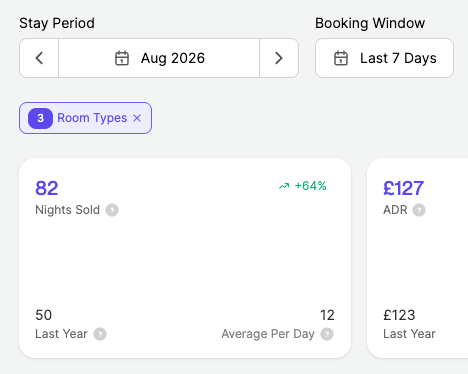
- Filters let you isolate a specific room type (or several) across the whole dashboard — summary cards, pace chart, and breakdown table — without leaving the page.
- This is especially useful when you want to investigate why a KPI moved, compare specific room types against each other, or focus on one part of your business.
Where can I find Pickup Breakdown & Filters
- Log into your account.
- Go to Reporting > Pickup tab — the same place as the Pickup Dashboard.
The breakdown table and filter panel appear directly on the existing Pickup Dashboard — there's no new navigation or setup required.
- Access depends on your plan: Advanced and Professional
- Available for PMS integrations with Reporting enabled.
- If you manage multiple properties, see the Multi-property accounts note below — breakdown and filtering currently work a little differently there.
How to use the breakdown table
- View the breakdown table on your Pickup Dashboard. The table sits alongside your existing KPI cards and pickup chart, and reflects the stay period and booking window you've already selected.
- Choose a breakdown category. Use the "Breakdown by" selector above the table to choose which category it groups by. Right now, Room type is the only option, more categories are coming soon (see below).
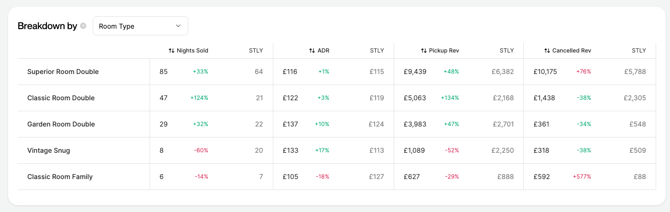
- Read the table. Each row represents one room type and shows four KPIs — Nights Sold, ADR, Pickup Revenue, and Cancelled Revenue — each with its current value, the same value from last year (STLY), and the percentage change between them.
- Sort the table. Click any column header to sort the table by that column. Click it again to reverse the sort order.
- Page through longer lists. If you have more room types than fit on one page, use the pagination controls at the bottom of the table to move through them.
How to use filters
- Open the filter panel. Open the filter panel from the Pickup Dashboard. It opens as a side panel
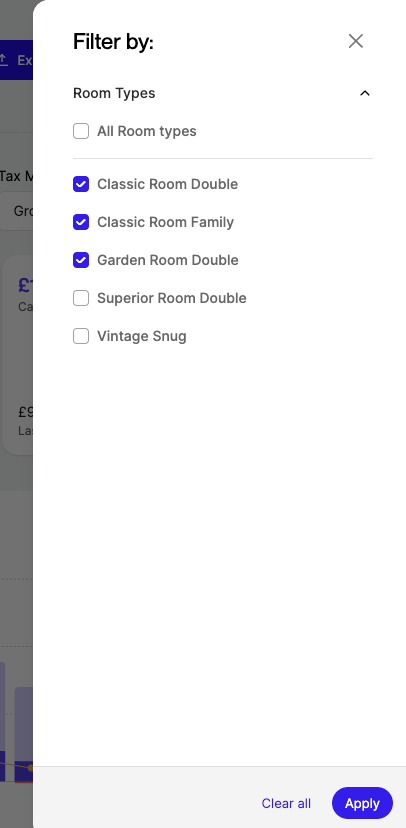
2. Select the items you want to filter by. Select one or more items within a category using the checkboxes. Right now, Room type is the only filter category available — more are coming soon (see below).
- Use Select All to include or exclude every item in the category at once.
- If a category has a long list of items, scroll down to see them all.
Multi-property accounts
- If you manage multiple properties, the breakdown table currently shows only when one property is selected. If you have two or more properties selected at once, the breakdown table won't display.
- Select a single property to see the Room type breakdown and filter.
- Support for breaking down and filtering across your whole portfolio is coming soon.
More categories coming soon
Room type is the first breakdown and filter category available. We're working on adding more ways to break down and filter your pickup, including by property, channel, segment, weekday, and rate type.
Tips & Best practices
- Use the breakdown table to spot which room types are outperforming or underperforming, then filter down to that specific room type to see its trend on the pace chart.
- Review both the absolute value and the % change together — a big percentage swing on a small room type can matter less than a smaller swing on your biggest category.
- Use Clear All to return to your overall pickup view before comparing a new set of room types.
Examples
Example 1: Investigating an underperforming room type
- With your usual stay period and booking window selected, review the breakdown table (Room type).
- You notice one room type shows a negative Pickup Revenue change compared to STLY.
- Filter down to that room type to see its pace chart in isolation and check whether cancellations or slower new bookings are behind it.
Example 2: Comparing two room types
- Open the filter panel and select two specific room types.
- Compare their rows in the breakdown table side by side — Nights Sold, ADR, and Pickup Revenue.
- Use this to decide whether a pricing or availability adjustment is needed for one of them.
FAQs
Which categories can I break down or filter by today?
Room type. More categories — property, channel, segment, weekday, and rate type — are coming soon.
Can I use breakdown and filters on a multi-property account?
Only when a single property is selected. Breakdown and filtering across multiple properties selected at once isn't available yet.
Can I export the breakdown or filtered data?
Not currently available.
Do filters affect the whole dashboard or just the breakdown table?
The whole dashboard — summary cards, pace chart, and breakdown table all reflect your applied filters.
Who can access this feature?
Advanced and Professional plans, same as the Pickup Dashboard. Requires a PMS integration with Reporting enabled.