Your Pickup Dashboard now includes a filter panel. Instead of only seeing your total pickup, you can filter the whole dashboard down to a specific selection.
The first available filter category is Room Type, with more categories on the way.
Why use Pickup Filters
- Filters let you isolate a specific room type (or several) across the whole dashboard — summary cards and pace chart — without leaving the page.
- This is especially useful when you want to investigate why a KPI moved, or focus on one part of your business.
- If you're on the Advanced or Professional plan, filters also apply to the breakdown table, letting you narrow that view down as well.
Where can I find Pickup Filters
- Log into your account.
- Go to Reporting > Pickup tab — the same place as the Pickup Dashboard.
The filter panel appears directly on the existing Pickup Dashboard — there's no new navigation or setup required.
- Available on all plans, including Core.
- Available for PMS integrations with Reporting enabled.
- If you manage multiple properties, see the Multi-property accounts note below.
How to use filters
- Open the filter panel. Open the filter panel from the Pickup Dashboard. It opens as a side panel.
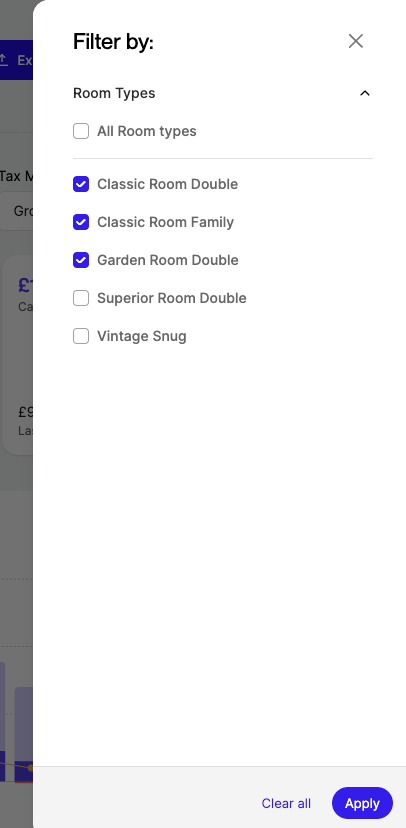
- Select the items you want to filter by. Select one or more items within a category using the checkboxes. Right now, Room type is the only filter category available — more are coming soon (see below).
- Use Select All to include or exclude every item in the category at once.
- If a category has a long list of items, scroll down to see them all.
3. Check your active filters. A counter at the top of the panel shows how many filters are active in total, and each category shows its own count.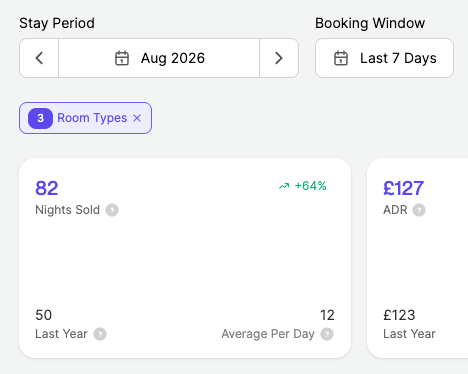
4. Apply and clear filters. Applied filters affect the whole dashboard — summary cards and pace chart (and breakdown table, if available on your plan). Click Clear All to remove every applied filter in one click.
Multi-property accounts
- If you manage multiple properties, filters currently apply only when one property is selected.
- Select a single property to use the Room type filter.
- Support for filtering across your whole portfolio is coming soon.
More categories coming soon
Room type is the first filter category available. We're working on adding more ways to filter your pickup, including by property, channel, segment, weekday, and rate type.
Tips & Best practices
- Filter down to a specific room type to see its trend on the pace chart in isolation.
- Use Clear All to return to your overall pickup view before checking a new room type.
FAQs
Which categories can I filter by today?
Room type. More categories — property, channel, segment, weekday, and rate type — are coming soon.
Can I use filters on a multi-property account?
Only when a single property is selected. Filtering across multiple properties selected at once isn't available yet.
Do filters affect the whole dashboard?
Yes — summary cards and pace chart reflect your applied filters. If you're on Advanced or Professional, the breakdown table is filtered too.
Who can access this feature?
All plans, including Core. Requires a PMS integration with Reporting enabled.