
If your property follows a 4-4-5, 4-5-4 or 5-4-4 retail accounting calendar, you can now set it up in RoomPriceGenie. Once configured, the Performance and Pickup tabs can be viewed by Period instead of by calendar month, with year-over-year comparisons against the same days last year.
What is a retail calendar?
A retail calendar (also called a 4-4-5 calendar) splits the year into four quarters of 13 weeks each. Each quarter is divided into three periods of 4, 4 and 5 weeks, which gives 12 periods and 52 weeks per year. The pattern name tells you where the 5-week period falls in each quarter:
| Pattern | Period lengths in each quarter |
|---|---|
| 4-4-5 | 4 weeks, 4 weeks, 5 weeks |
| 4-5-4 | 4 weeks, 5 weeks, 4 weeks |
| 5-4-4 | 5 weeks, 4 weeks, 4 weeks |
Because every period is made up of full weeks, each period always contains the same number of each weekday.
Because every period is made up of full weeks, each period always contains the same number of each weekday.
Why use Retail Calendar?
- Fairer year-over-year comparisons. A calendar month can contain either four or five Saturdays. Since Saturday nights often drive a large share of weekly revenue, one extra Saturday can make a month look much stronger or weaker than it really was. Periods made of full weeks remove this distortion.
- One calendar for everyone. Your RoomPriceGenie reports follow the same periods your finance team uses, so there's no need to reconcile two different calendars manually.
- Like-for-like comparisons. Each day is compared with the same weekday one year earlier, so a Saturday is always compared with a Saturday.
How to set up Retail Calendar
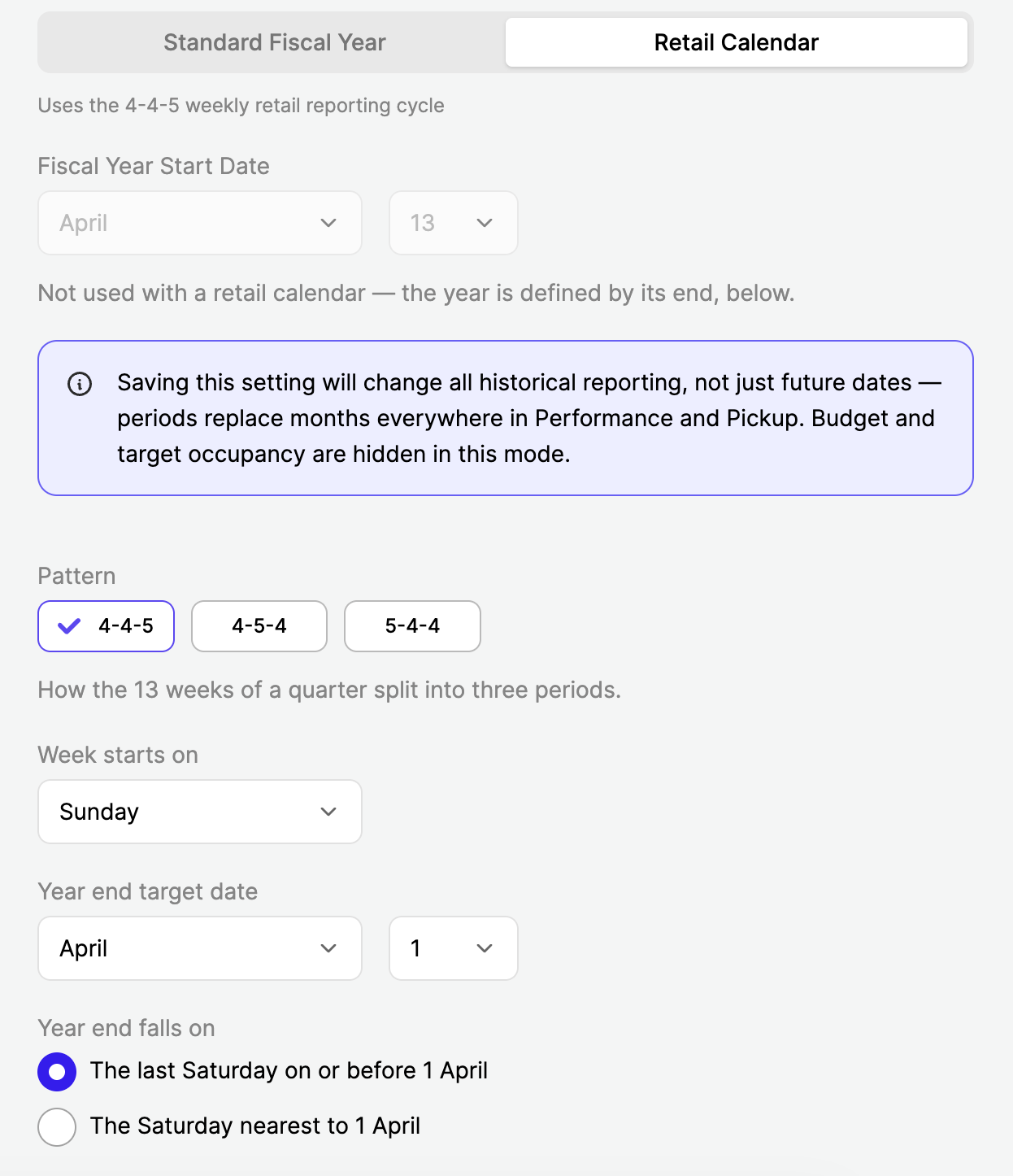
- Go to Account Settings → Reporting Preferences and select Retail Calendar.
- Configure your calendar:
- Pattern: choose 4-4-5, 4-5-4 or 5-4-4.
- Week starts on: choose the weekday your weeks begin on.
- Year-end: choose a target year-end date and a rule for how the year ends:
- Last [weekday] before [year-end date], for example the last Saturday before 31 December.
- [Weekday] nearest to [year-end date], for example the Saturday nearest to 31 December.
- Save your settings.
Once configured, Period / Fiscal Year becomes the default option in the date picker of the Performance and Pickup tabs. Calendar Year and Custom Fiscal Year remain available.
How to use Retail Calendar
1. Retail Calendar (current period) will show as default in Performance and Pickup tabs.
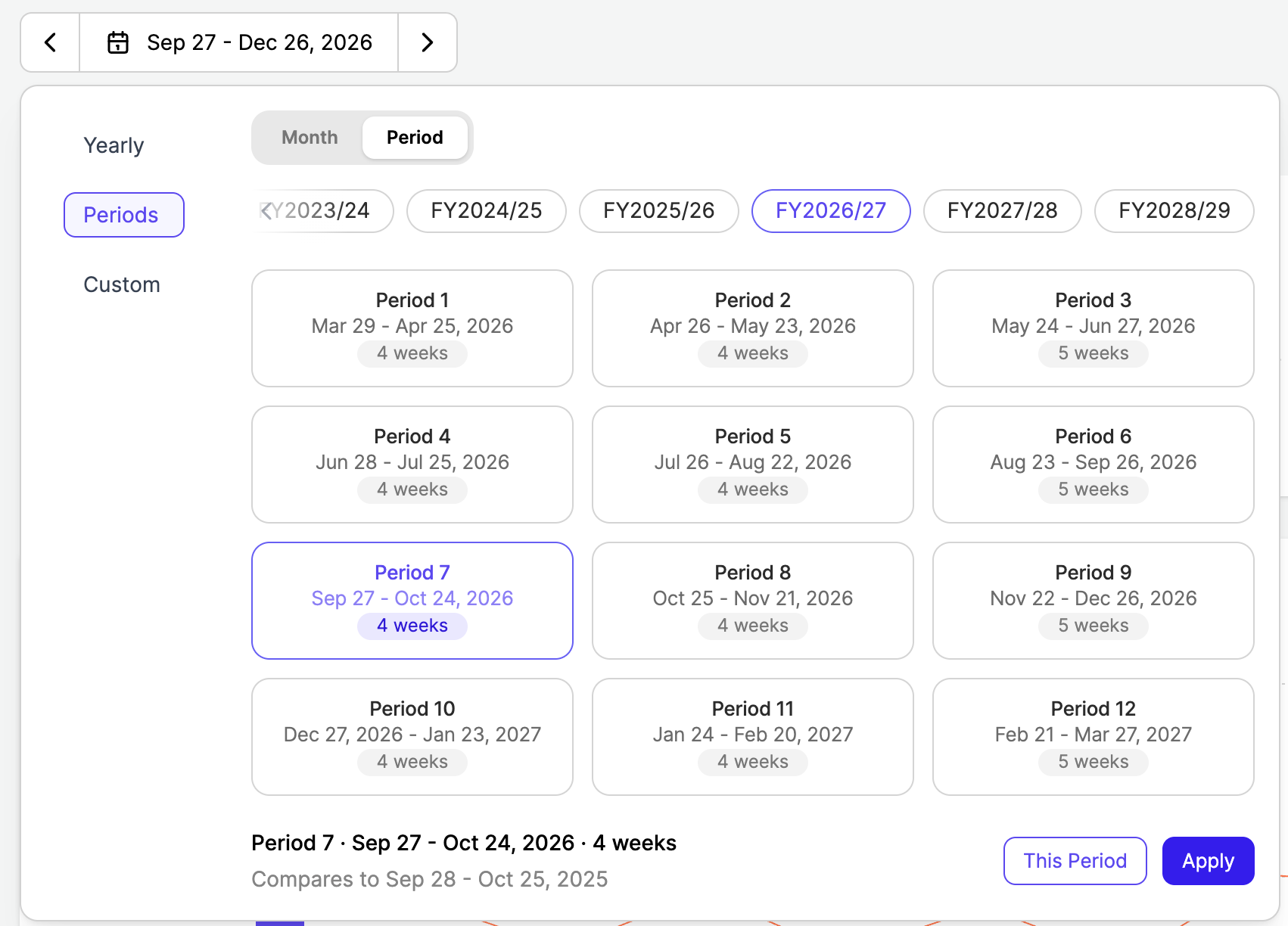
2. Select one or more periods
Periods are labelled Period 1 to Period 12, and every three periods make up a 13-week quarter. Each period shows its date range next to the label, for example Period 1 (30 Jan – 26 Feb), so you can check that it matches your own fiscal calendar.To view more than one period, select a start period and an end period. All periods in between are included.
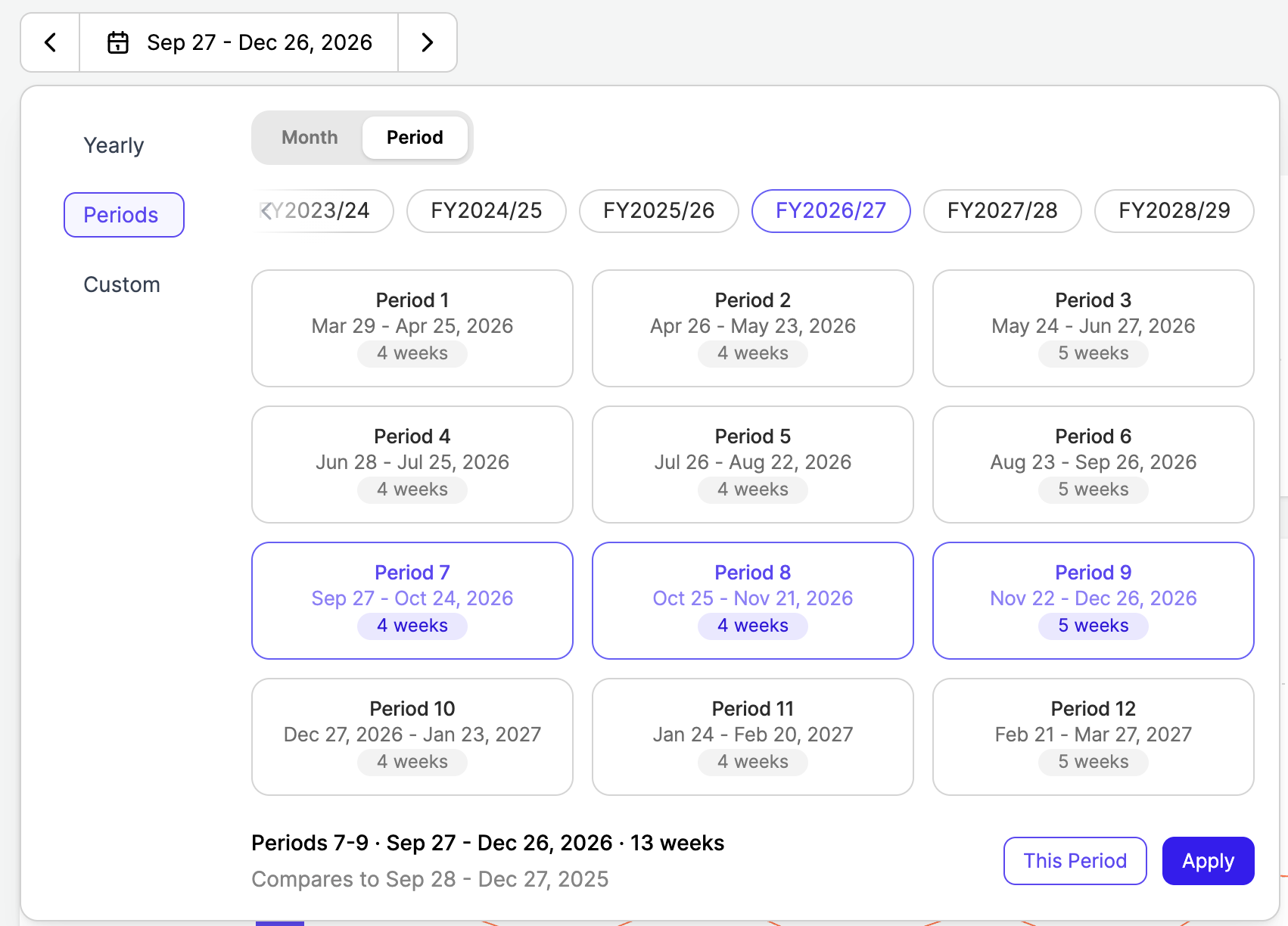
3. Compare to last year
Your selection is compared with the same days 364 days earlier (exactly 52 weeks), not with the same period number last year. This means every day is compared with the same weekday, so a Saturday is always compared with a Saturday. It also keeps the comparison accurate when period dates shift slightly from one year to the next. Fiscal years are shown in the format FY2025/26.
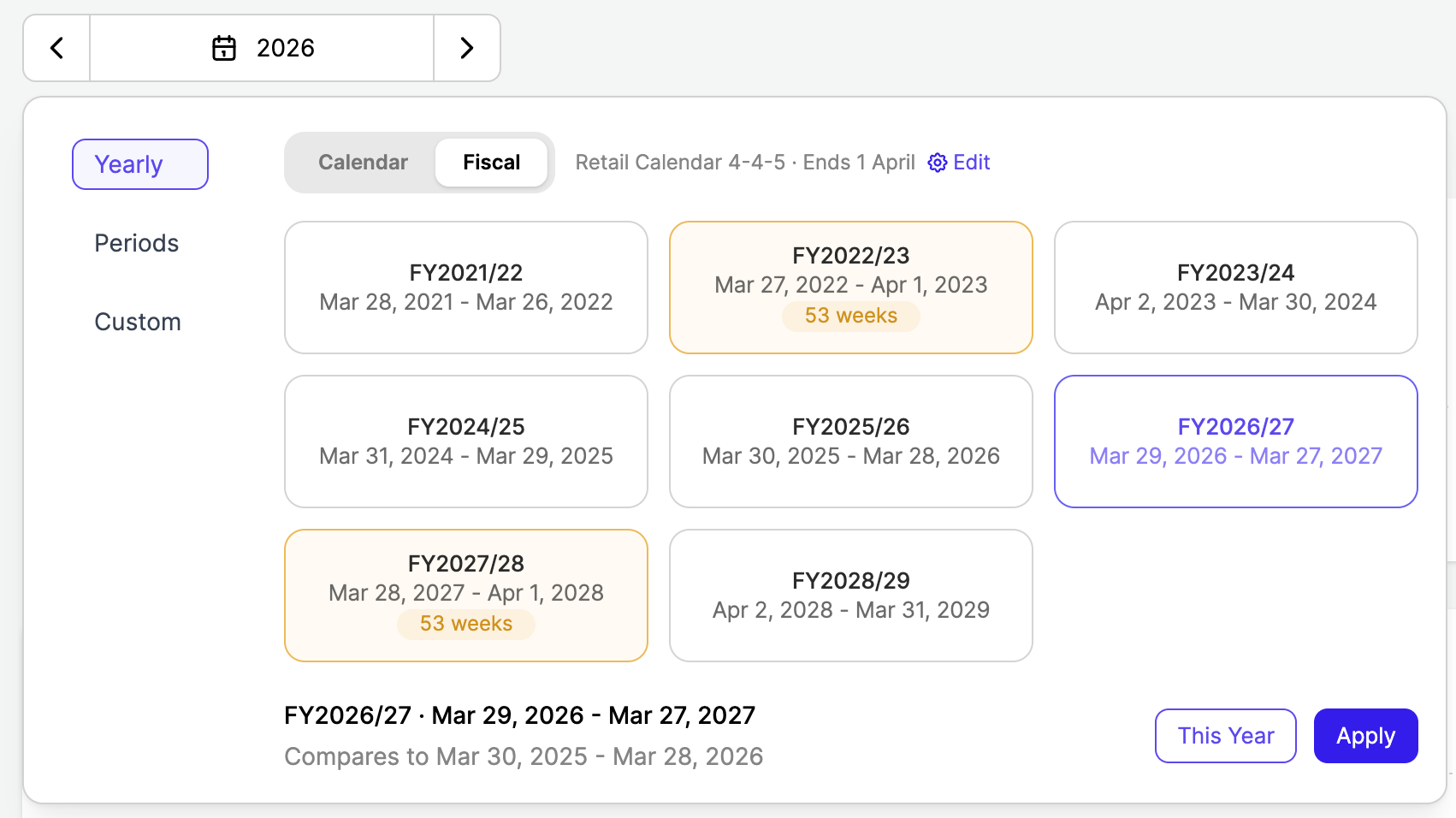
4. Check for 53-week years
Some fiscal years have an extra week, making them 53 weeks long instead of 52. When a 53-week year is part of your current view or your year-over-year comparison, RoomPriceGenie shows a flag. This helps you tell whether a change in the numbers reflects real performance or simply the extra week.
Good to know
- Supported tabs: Retail Calendar currently applies to the Performance and Pickup tabs only. The Analytics tab and Vacation Rental benchmarking are not covered yet. As a workaround, you can use advanced filters in those areas.
- Budget and Target Occupancy: these are hidden while Retail Calendar is active, just as they are in Custom Fiscal Year mode. Both are set per calendar month, so they can't be mapped accurately onto periods.
- Multi-property groups: period dates are taken from the calendar of the property you're currently viewing and applied to all properties in your selection. If your group includes properties with different calendars, the periods shown will follow that one property's calendar.
- Exports: Excel and PDF exports are not yet available for Retail Calendar. For now, exports keep the calendar-month format.
- Retail Calendar vs Custom Fiscal Year: these are two separate settings. If you want to keep calendar months and only change the month your year starts in, use Custom Fiscal Year instead.
Tips and best practices
- Check your period dates after setup. The date range shown next to each period is the quickest way to confirm that your pattern, week start day and year-end settings are correct.
- Remember that comparisons are date-based. Last year's figures are always taken from 364 days earlier, not from the same period number. If a comparison ever seems a few days off, this is usually why.
FAQs
Can I use Retail Calendar and Custom Fiscal Year at the same time?
No. Calendar Year, Custom Fiscal Year and Retail Calendar are three separate reporting modes, and a property can only use one at a time.
Can a group use more than one retail calendar?
Not at the moment. Each property has one calendar, and multi-property views use the calendar of the property you're currently viewing.
Do period figures match day-level figures?
Yes. KPI values shown by period match the same data viewed by day, down to the cent.
What happens in a 53-week year?
RoomPriceGenie shows a flag whenever a 53-week year is part of your current view or your year-over-year comparison. The extra week is added to the last period of the year, so the final quarter becomes 4-4-6, 4-5-5 or 5-4-5, depending on your pattern.