
The first thing to check is whether there’s a typo in your username.
You probably did that already, so the next step is to reset the password: Please try the “Need a new password?” option located at https://app.roompricegenie.com/login, right below the password field on the right side.
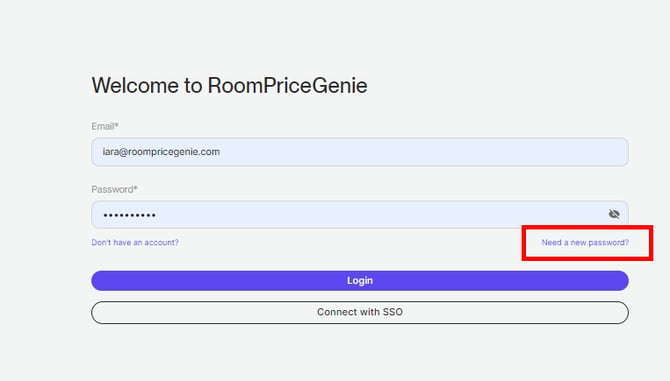
You should receive a link to reset your password.
If it doesn’t work, it might be due to your browser's settings or cached data. Here are some steps you can take to resolve the issue:
- Check your browser
RoomPriceGenie works best on modern browsers like Google Chrome, Mozilla Firefox, and Microsoft Edge. If you're using an outdated or unsupported browser (like Internet Explorer), you might experience issues logging in. We recommend switching to one of the supported browsers listed above. - Clear your cache and cookies
Sometimes, saved cache or cookies can interfere with the login process. To clear your cache and cookies:- In Google Chrome:
- Click on the three dots in the top-right corner and select Settings.
- Scroll down to Privacy and security and click Clear browsing data.
- Choose Cookies and other site data and Cached images and files. Make sure to select a time range (preferably "All time").
- Click Clear data and restart your browser.
- In Mozilla Firefox:
- Click the three horizontal lines in the top-right corner and choose Settings.
- Go to Privacy & Security and scroll down to the Cookies and Site Data section.
- Click Clear Data, select Cookies and Site Data and Cached Web Content, then click Clear.
- In Microsoft Edge:
- Click the three dots in the top-right corner and select Settings.
- Under Privacy, search, and services, go to Clear browsing data and click Choose what to clear.
- Select Cookies and other site data and Cached images and files, then click Clear now.
- In Google Chrome:
- Disable browser extensions
Some browser extensions (like ad blockers or privacy tools) can interfere with logging in. Try temporarily disabling any extensions and then attempting to log in again. - Try incognito/private browsing mode
If clearing cache and cookies doesn’t resolve the issue, try logging in using Incognito Mode (Chrome) or Private Browsing Mode (Firefox/Edge). These modes bypass cached data and cookies, which could help identify if stored data is causing the issue. - Check for updates
Make sure your browser is up-to-date. An outdated version might cause compatibility issues with the RoomPriceGenie platform. - Allow pop-ups and third-party cookies
RoomPriceGenie may require pop-ups and third-party cookies to be enabled for full functionality. To check these settings:- In Google Chrome:
- Go to Settings > Privacy and security > Site settings and ensure that pop-ups and third-party cookies are not blocked for app.roompricegenie.com.
- In Mozilla Firefox:
- Go to Settings > Privacy & Security, and under Enhanced Tracking Protection, choose Standard for fewer restrictions.
- In Microsoft Edge:
- Go to Settings > Privacy, search, and services and ensure that Balanced tracking prevention is selected instead of Strict.
- In Google Chrome:
- Try another browser or device
If the issue persists, try logging in from a different browser or device. This can help rule out device-specific or browser-specific problems.
Password Reset Email Not Arriving
If the password reset email doesn't arrive within 5 minutes:
- Check your spam or junk folder.
- Check that you entered the email address of your RoomPriceGenie user.
- Request the password reset email once more.
- Ask your IT team to allow emails from roompricegenie.com.
Two-Factor Authentication (2FA) Codes
After your password, RoomPriceGenie asks for a verification code when two-factor authentication (2FA) is on for your user. The 2FA code comes by email or from an authenticator app, depending on the method you chose when you set up 2FA.
What to do if your 2FA code is not accepted
- Authenticator app codes: authenticator codes change every 30 seconds. Enter the current code before it changes.
- Phone clock: set the time on your phone to update automatically. A wrong clock makes authenticator codes fail.
- Email codes: check your spam or junk folder, and use only the most recent 2FA code you received.
What to do if you lost your authenticator app
If you saved backup codes when you set up 2FA, enter one backup code instead of the app code. Each backup code works only once.
How to request a 2FA reset
Customers can't reset two-factor authentication themselves when they're locked out. To request a 2FA reset, email support@roompricegenie.com from the email address you log in with. For your security, our team confirms your identity before resetting 2FA.
"You Don't Have Permission to Access Any Hotel" Error
The "You don't have permission to access any hotel" message means your password worked, but your user isn't linked to any property. Ask the account owner or an admin on your account to give your user access to the property (see Manage Users & Users Permissions). If you're the account owner, email support@roompricegenie.com.
Need Help?
Questions? Email support@roompricegenie.com, or ask for a person in the in-app chat. For billing, email subscriptions@roompricegenie.com.