![rpg_Logo_darkgrey.png]](https://help.roompricegenie.com/hs-fs/hubfs/rpg_Logo_darkgrey.png?height=40&name=rpg_Logo_darkgrey.png)
The pickup dashboards shows how many nights were booked within a chosen booking window, how many were cancelled, and how this compares to Last Year (LY). This helps you evaluate whether your booking pace is healthy and aligned with expectations.
Why use the Pickup dashboard
-
Pickup is an early indicator of future occupancy and revenue performance.
-
Net pickup alone can hide important signals if cancellations offset new bookings.
-
This feature is especially valuable when:
-
You are unsure whether you are pacing normally.
-
Pickup looks flat and you want to understand if cancellations are involved.
-
Where can I find the pickup dashboard
-
Log into your account.
-
Go to Reporting > Pickup tab
Access depends on your plan:
-
Advanced: Available for last month, current month, and next month dates.
-
Pro / Pro-lite: Available with historical data capped to the last 5 years.
-
Available for PMS integrations with Reporting enabled.
How to use the pickup dashboard
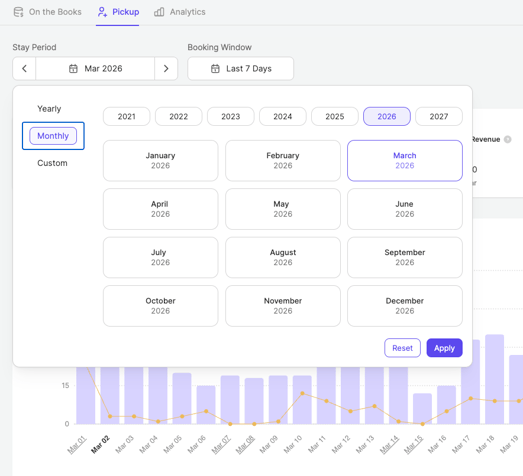
1. Select your stay period
-
Choose: Yearly, Monthly, Custom date range
-
This defines the stay dates you want to analyze.
2. Select your booking window
-
Choose: Preset ranges (e.g., last 3 days), Custom date range
-
This defines when the bookings were made.
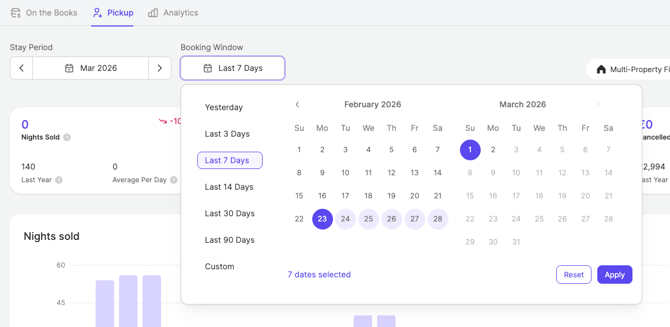
The selected stay period and booking window apply globally to both KPI cards and the chart.
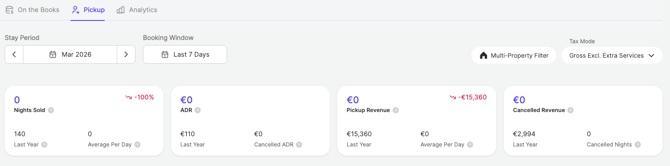
3. Review KPI cards
You will see:
-
Nights Sold (with LY comparison and average per day)
-
ADR (with LY comparison and cancelled ADR)
-
Pickup Revenue (with LY comparison and average per day)
-
Cancelled Revenue (with LY comparison and cancelled Nights)
4. Analyze the pickup chart
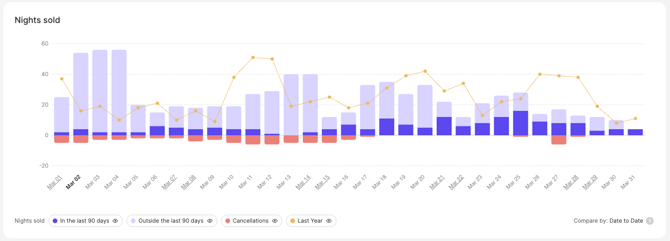
The chart shows:
-
Nights sold within the selected booking window, for the selected stay date
-
Nights sold outside the selected booking window, for the selected stay date
-
Cancellations (Within the selected booking window, for the selected stay date)
-
LY comparison line (Nights sold within the selected booking window)
-
Hover details for daily breakdown
Tips & Best practices
-
Always compare pickup against LY to understand pacing context.
-
Review both nights sold and cancellations to understand real performance
-
Use shorter booking windows (e.g., last 7–14 days) to detect sudden shifts.
-
Use longer windows (e.g., 30–90 days) for broader trend evaluation.
-
Review pickup before making major pricing changes.
Examples
Example 1: Investigating if demand is slowing
You select:
-
Stay period: Next month
-
Booking window: Last 14 days
You notice that:
-
Nights sold are lower than LY.
-
Cancellations increased during the same period.
This may indicate weaker demand and higher cancellation risk.
Example 2: Investigating strong pickup
You select:
-
Stay period: Upcoming weekend
-
Booking window: Last 7 days
You see:
-
Higher nights sold than LY.
-
Low cancellations.
This may signal strong short-term demand.
FAQs
Who can access the Pick-up Dashboard?
-
Advanced plan (3-month timeframe limit).
-
Pro / Pro-lite (5-year historical cap).
-
Reporting integration must be enabled.
No setup is required. The dashboard is available automatically based on your plan.
Can I breakdown pickup by segment, channel etc?
-
Currently not available.
Can I do download the pickup data?
-
Currently not available.